MacroFactor vs Cronometer label scanning: what differs?
Compare MacroFactor and Cronometer nutrition label scanning, international support, barcode fallbacks and serving-field checks, with worked kcal and kJ examples.
kcalm editorial team
Prepared with AI assistance
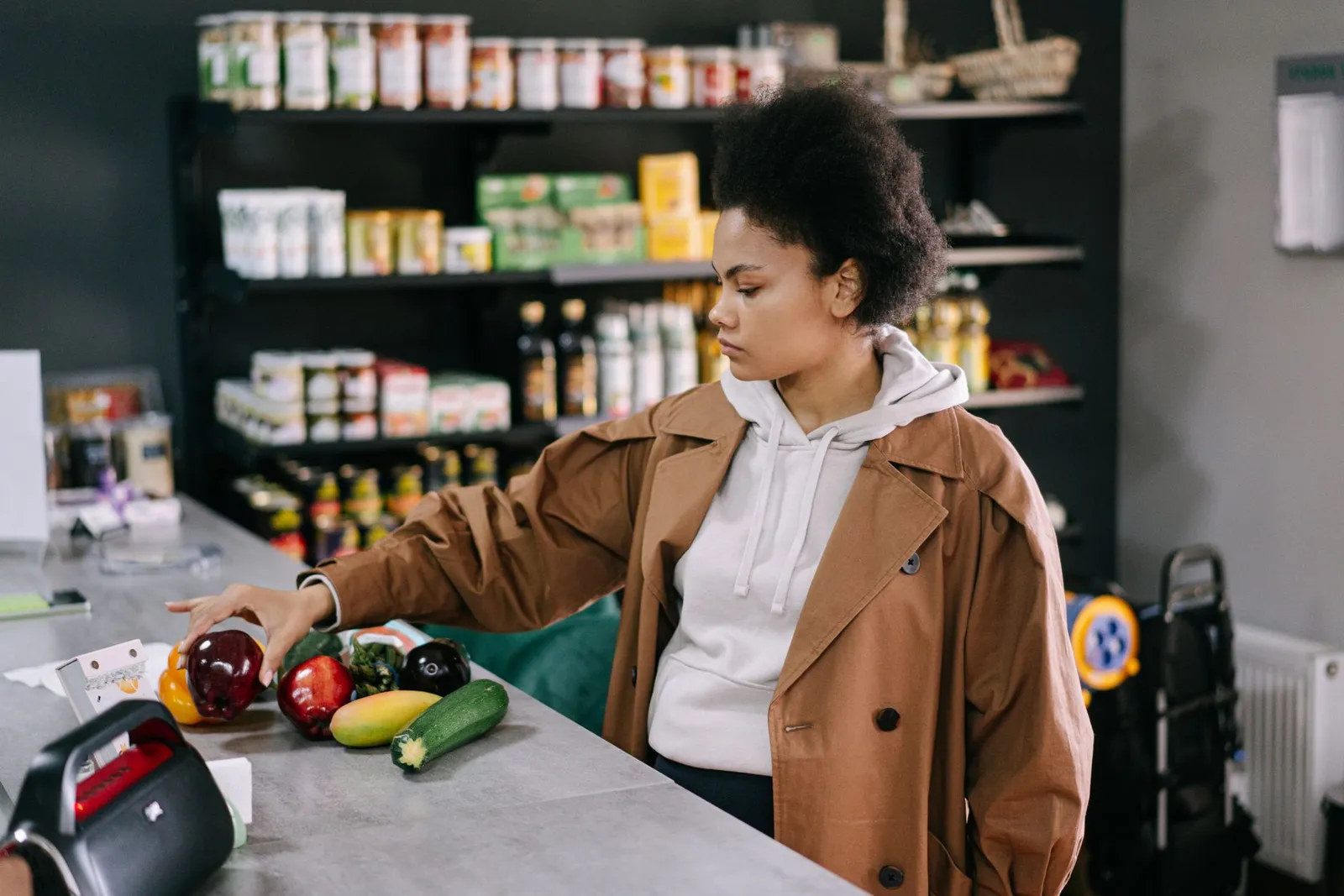
MacroFactor vs Cronometer label scanning offers two ways to add packaged foods when a barcode lookup fails. MacroFactor switches to its label scanner; Cronometer offers custom-food creation using packaging photos. Both document international-label support, with limitations that are less clearly specified. The useful comparison is how you review the captured numbers, serving basis and portion before saving, rather than an untested claim that one scanner is more accurate. [1,2,3,4]
How does MacroFactor vs Cronometer label scanning compare?
As of 9 November 2026, MacroFactor and Cronometer both document nutrition-label capture for creating food entries. MacroFactor also documents uploading packaging photos through its custom-food workflow. Cronometer describes photographing the nutrition panel and package front after an unmatched barcode. This is a public-documentation comparison, without hands-on scanner testing. [1,2,5]
| Workflow question | MacroFactor | Cronometer |
|---|---|---|
| Barcode has no database match | Automatic switch to label scanner [1] | Prompt to create a food [2] |
| Label access without a successful barcode | Label tab in food logger [1] | Cited scanner guide centres on unmatched barcodes [2] |
| Packaging photos from your library | Documented in custom-food AI import [5] | Not established by the cited scan-food guide [2] |
| International labels | Expanded formats and languages announced in 2026 [3] | International support announced in 2024 [4] |
| Manual review | Custom-food serving and nutrient fields [5] | Complete food details before saving [2] |
| Country-by-country success rate | Not provided in these sources | Not provided in these sources |
This distinction matters if you buy imported products or regularly encounter foods missing from a database. A comparison based only on whether an app has a barcode button misses the next step: getting a usable entry after that lookup fails. For access rules across other apps, see our barcode scanner comparison.
What happens when a barcode is missing or unreadable?
A missing barcode, an unreadable barcode and an unmatched barcode are different problems. MacroFactor documents direct access to label mode, while Cronometer documents typing a barcode number when the camera cannot read it and creating a custom food when that number has no match. [1,2]
Consider three everyday situations. The first is a shiny packet with a visible number below the bars. Typing that number in Cronometer bypasses the camera problem, but still depends on a database match. The second is a perfectly readable code for a product the app does not know. That is where the documented custom-food fallback becomes useful. The third is a package without a barcode at all. MacroFactor's direct label tab addresses that case without needing a failed lookup first. [1,2]
For MacroFactor's separate custom-food import, you can take or upload photos of the product front and nutrition panel, then run the analysis. Its manual creation options let you use a serving, 100 g or 100 mL as the nutritional reference. Match that reference to the column you are entering. [5]
In Cronometer, the scan-food guide describes capturing two views: the nutrition information and the front of the package. These serve different purposes. The panel supplies quantities, while the front helps identify the product and formulation. A private food entry and a publicly reviewed database listing are separate stages of this workflow. [2,9]
Do the scanners support Australian and other international labels?
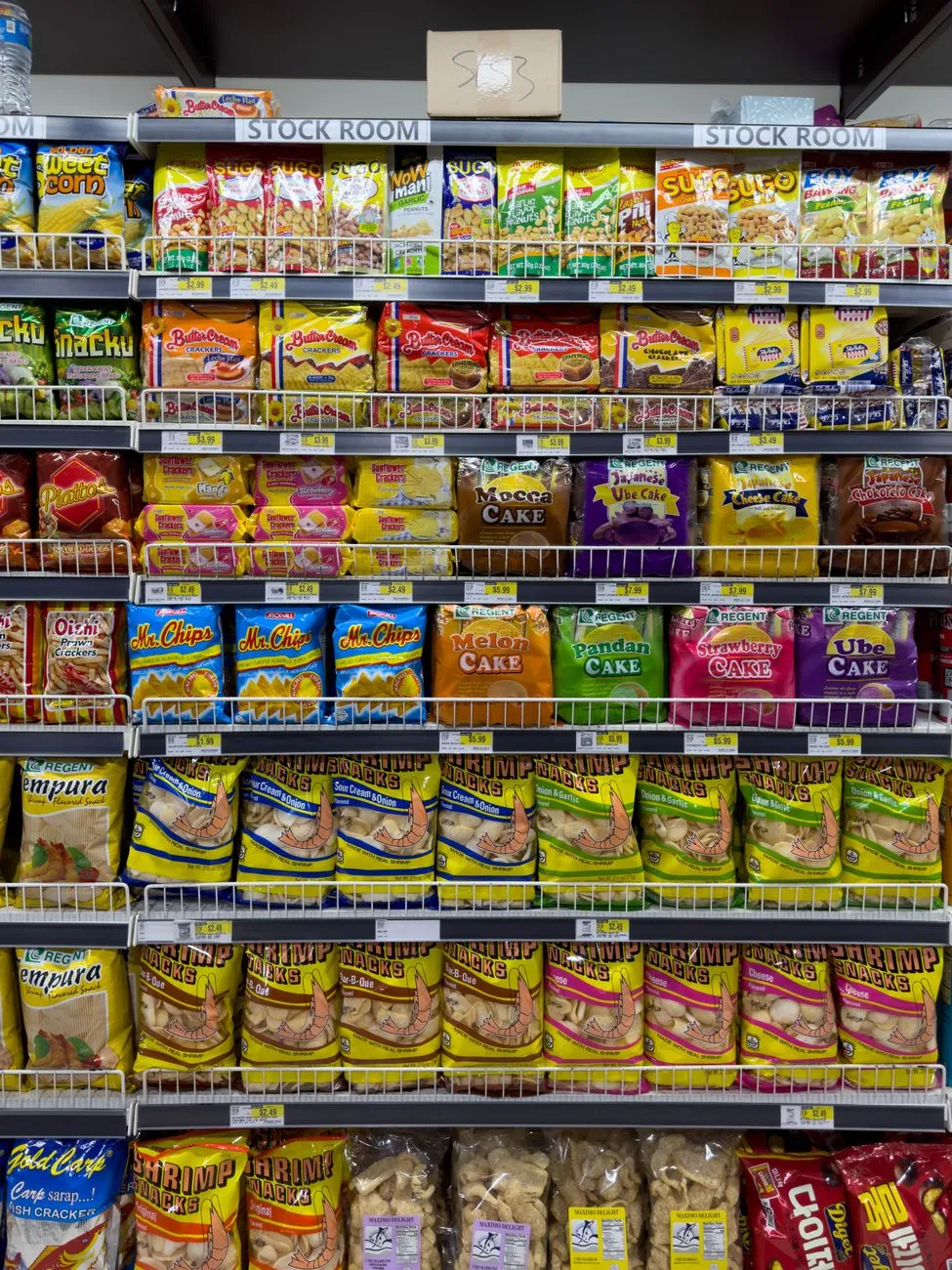
Both scanners document international-label support, but neither cited announcement supplies an exhaustive compatibility list. MacroFactor's 2026 annual report describes broader formats and languages; Cronometer's August 2024 announcement describes international-label autofill. Their narrower help-page wording is a documentation discrepancy, not evidence that all other labels fail. [3,4]
MacroFactor's dedicated scanner help still highlights US and Canadian labels. Read alongside the annual report updated on 30 September 2026, that wording understates the breadth of the later announcement. The report supports saying that international recognition expanded; it does not support promising flawless capture of a particular language, layout or product. [1,3]
Cronometer's scan-food help, marked updated on 3 November 2026, still specifically describes automatic population for American labels. Its official product blog and community announcement describe wider international support. These pages do not resolve which formats work consistently or whether every device follows an identical workflow. [2,4,9]
According to Food Standards Australia New Zealand, a standard nutrition information panel presents average quantities per serving and per 100 g, or per 100 mL for liquids. Energy appears in kilojoules, or both kilojoules and kilocalories. That creates two practical review questions: which column was captured, and which energy unit is selected? [6]
For example, a yoghurt panel can contain both a tub-sized serving and a 100 g reference. Both columns describe the same food. Copying one column's energy while using the other column's mass creates an inconsistent entry, even if every digit was read correctly. The worked example below illustrates that mismatch rather than an observed failure in either app.
How much can a serving-column mistake change your log?
A serving-column mistake changes the amount of food represented by the scanned values. In the hypothetical example below, treating 150 kcal per 150 g as 150 kcal per 100 g raises the logged energy for the same portion by 50%. This is arithmetic, not a scanner accuracy result.
Imagine a fictional yoghurt with these deliberately simple label values: 100 kcal, approximately 418 kJ, and 8 g protein per 100 g (3.53 oz). A labelled serving is 150 g (5.29 oz), so that serving contains 150 kcal, approximately 628 kJ, and 12 g protein. You eat 200 g (7.05 oz).
| Entry setup for the same 200 g portion | Logged kcal | Approximate kJ | Logged protein |
|---|---|---|---|
| Correct: 100 kcal and 8 g protein per 100 g | 200 | 837 | 16 g |
| Correct: 150 kcal and 12 g protein per 150 g | 200 | 837 | 16 g |
| Mixed columns: 150 kcal and 12 g protein per 100 g | 300 | 1,255 | 24 g |
| Portion left at one 150 g serving | 150 | 628 | 12 g |
For a mass-based entry, the calculation is: portion energy = reference energy × portion mass ÷ reference mass. The correct per-serving calculation is 150 × 200 ÷ 150 = 200 kcal. The mixed-column calculation is 150 × 200 ÷ 100 = 300 kcal. Energy conversions here use 4.184 kJ per kcal, with displayed results rounded.
According to the FDA's label guide, its example food provides 280 kcal in one serving and 560 kcal in two servings. That is approximately 1,172 kJ and 2,343 kJ respectively. Scaling the quantity applies to nutrients as well as energy. [7]
If you want to explore your own label numbers, our serving-size error calculator compares the entered portion with the intended portion. An occasional correction is ordinary recordkeeping, not a reason to change what you eat.
What can you check before saving a scanned food?
A useful scanned-food check compares the product identity, reference quantity, energy units and actual portion with the package. This suggested review sequence separates text capture from portion selection, so you can fix a specific mismatch rather than repeatedly rescanning a correct number. [5,6,7]
- Confirm the product. Compare the name, flavour and formulation with the packet you are holding.
- Choose one reference column. Use either the labelled serving or the per-100-g figures consistently across the entry.
- Check units and decimals. Look at kcal versus kJ and grams versus milligrams before interpreting a large difference.
- Review the fields that matter to your log. Compare energy, protein, carbohydrate and fat with the same label column; review other captured nutrients too if you track them.
- Set your eaten amount. Replace a default serving with your actual portion, then check the resulting total before saving.
Try the sequence on the fictional yoghurt. If the reference says 100 g, its energy is 100 kcal and protein is 8 g. If the reference says 150 g, those values become 150 kcal and 12 g. Either route represents your 200 g portion correctly when its scaling is consistent.
According to NIDDK, a portion is the amount you choose to eat, while a serving is the quantity described on a food label. A portion can be larger or smaller than a serving. For logging, the label is a reference for calculation rather than a personalised instruction about how much to eat. [8]
If a field is unreadable, you can return to the package and enter it manually. If the package does not disclose a nutrient, the scan cannot establish its amount simply by reading the printed panel. Australian panels, for example, do not always list fibre; FSANZ describes circumstances where its declaration is required. [6]
Is label scanning the same as photographing a meal?
Label scanning reads printed product information, while meal-photo logging estimates food information from the meal image. The comparison here concerns the first task: transferring packaging details into a food entry. It does not establish the accuracy of recognising a plated meal or estimating its mass.
This article's evidence consists of vendor descriptions and government label guidance. It includes no matched set of photographed labels, independently checked scanner outputs or timing trials. Consequently, there is no measured speed winner, error percentage or verified accuracy ranking to report.
Our practical judgement is to compare the workflow against the packaging you actually use: direct label access, support for saved photos, understandable reference quantities and a review step you find manageable. International support is useful evidence of capability; your exact label format remains something to check.
For a different task, our AI photo calorie-counting review examines meal-photo estimation. Whether you keep your food diary in kcalm or another tracker, keeping the label basis and the eaten portion separate makes the record easier to interpret.
Frequently Asked Questions
These frequently asked questions distinguish documented scanner features from unresolved compatibility details and ordinary portion arithmetic. The answers reflect the public sources retrieved on 9 November 2026.
Can MacroFactor scan a label without finding a barcode first?
Yes. Its scanner guide documents a label tab in the food logger, as well as automatic switching after an unmatched barcode. That gives you a route to the printed panel without a successful database lookup. [1]
Can Cronometer read labels outside the United States?
Cronometer announced international-label support in August 2024. Its help page retains narrower American-label wording, so describing it as US-only would overlook the announcement. Exact country and language coverage remains unspecified in the cited documents. [2,4]
Can I upload a saved packaging photo to MacroFactor?
Yes. The custom-food guide describes an upload button within its AI import route, alongside taking new photos. That documentation supports saved packaging images in this workflow, without establishing that every scanner screen has the same upload controls. [5]
Does one scanned serving equal the whole packet?
Only when the packet and serving quantities match. A fictional packet containing three servings of 100 kcal contains 300 kcal, approximately 1,255 kJ. Logging one serving describes one-third of that packet. This follows the serving-multiplication principle explained by the FDA. [7]
Is Cronometer database review needed before I can log the food?
Cronometer's product guide says a newly created custom food can be added to the diary immediately. Public database publication follows curation review. The personal-entry step and the shared database step therefore have different timing. [9]
Which scanner is more accurate?
The sources reviewed do not establish a head-to-head accuracy winner. A defensible comparison would use the same labels, a checked reference transcription and defined scoring for both nutrient values and serving fields. Feature announcements alone cannot answer that question.
Sources
Sources below were retrieved on 9 November 2026. Vendor documents support feature descriptions; the three government resources explain label quantities and portions. All yoghurt figures are hypothetical calculations, not product measurements.
- MacroFactor: Label scanner
- Cronometer: Mobile scan food
- MacroFactor: 2026 annual report
- Cronometer: Autofill improvements and international labels
- MacroFactor: Create and add a custom food
- Food Standards Australia New Zealand: Nutrition information panels
- FDA: How to understand and use the Nutrition Facts label
- NIDDK: Food portions
- Cronometer: How to use the barcode scanner
Ready to track smarter?
Join thousands who use kcalm for calorie tracking. AI-powered food recognition, scientifically-validated calculations, and zero anxiety.